Blocks & directories
Create named editor blocks and configure Pro listings and reader search.
On this page
Make a reusable editor block · Free
- Open Publish → Blocks & listings → Custom blocks → + Create new.
- Name the block and add its editor controls. Select Save and make available.
- Find the chosen name in the WordPress block inserter. Each insertion stores its own content.
Build a directory · Pro
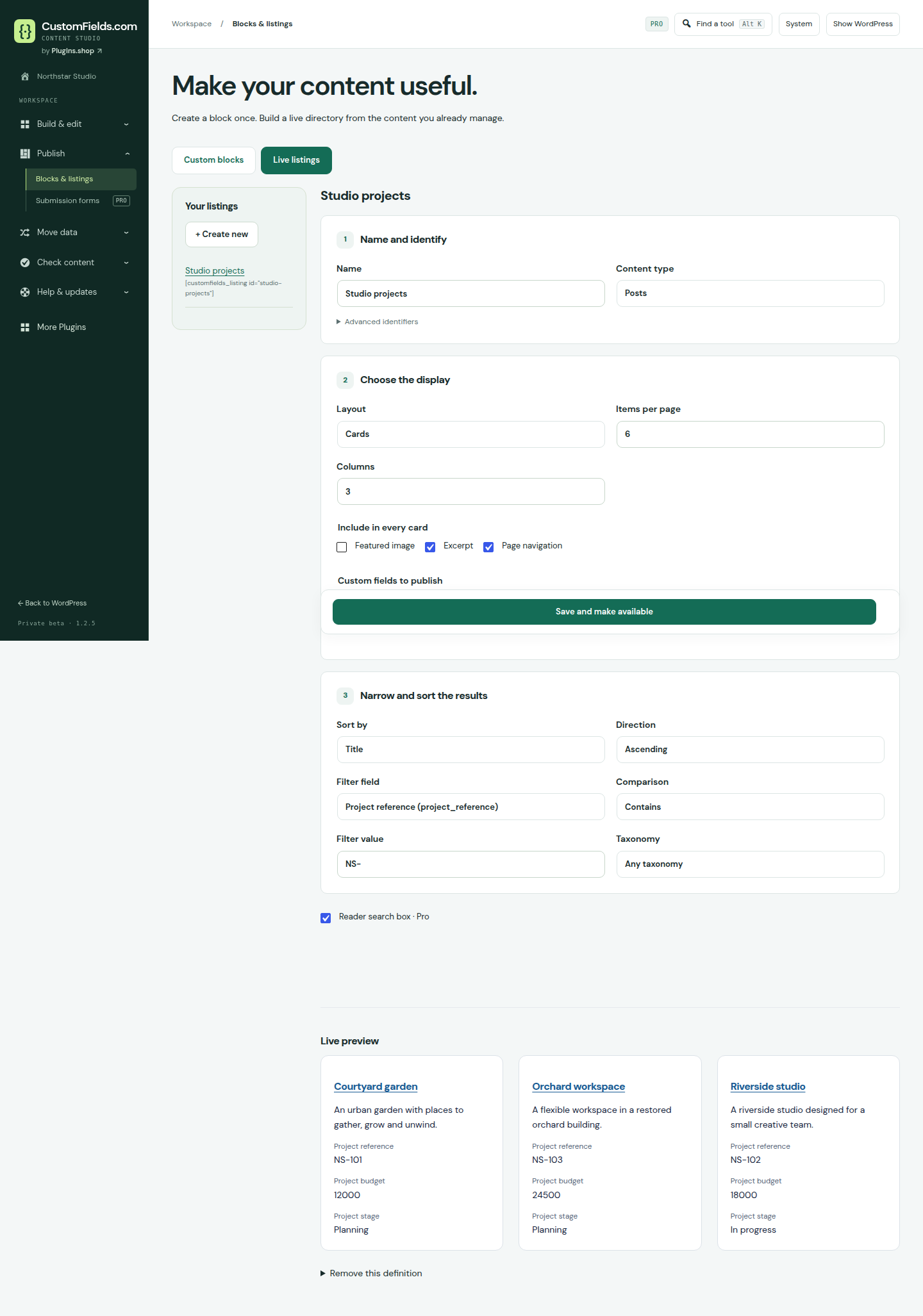
- Connect Pro, then open Publish → Blocks & listings → Live listings → + Create new.
- Choose the public content type, layout, query and fields to display. Save and make available.
- Insert the CustomFields listing block or copy the generated listing shortcode onto a page. Preview the result with published public content.
Display and compatibility details
In Blocks & listings, create a named block and choose its editor controls. Find that name in the WordPress block inserter. Each inserted block stores its own content.
With activated Pro, create a listing and choose its public content type, sort/filter, layout and fields to show. Add the CustomFields listing block, or use [customfields_listing id="your-listing"]. Only public published posts without password protection are included.
Elementor Free has CustomFields value and listing widgets. Dynamic tags require the applicable Elementor edition. No external builder licence is included.